
Understand reading percentages, save a deliberate assignment and return to the right learning record.
Save and resume reading
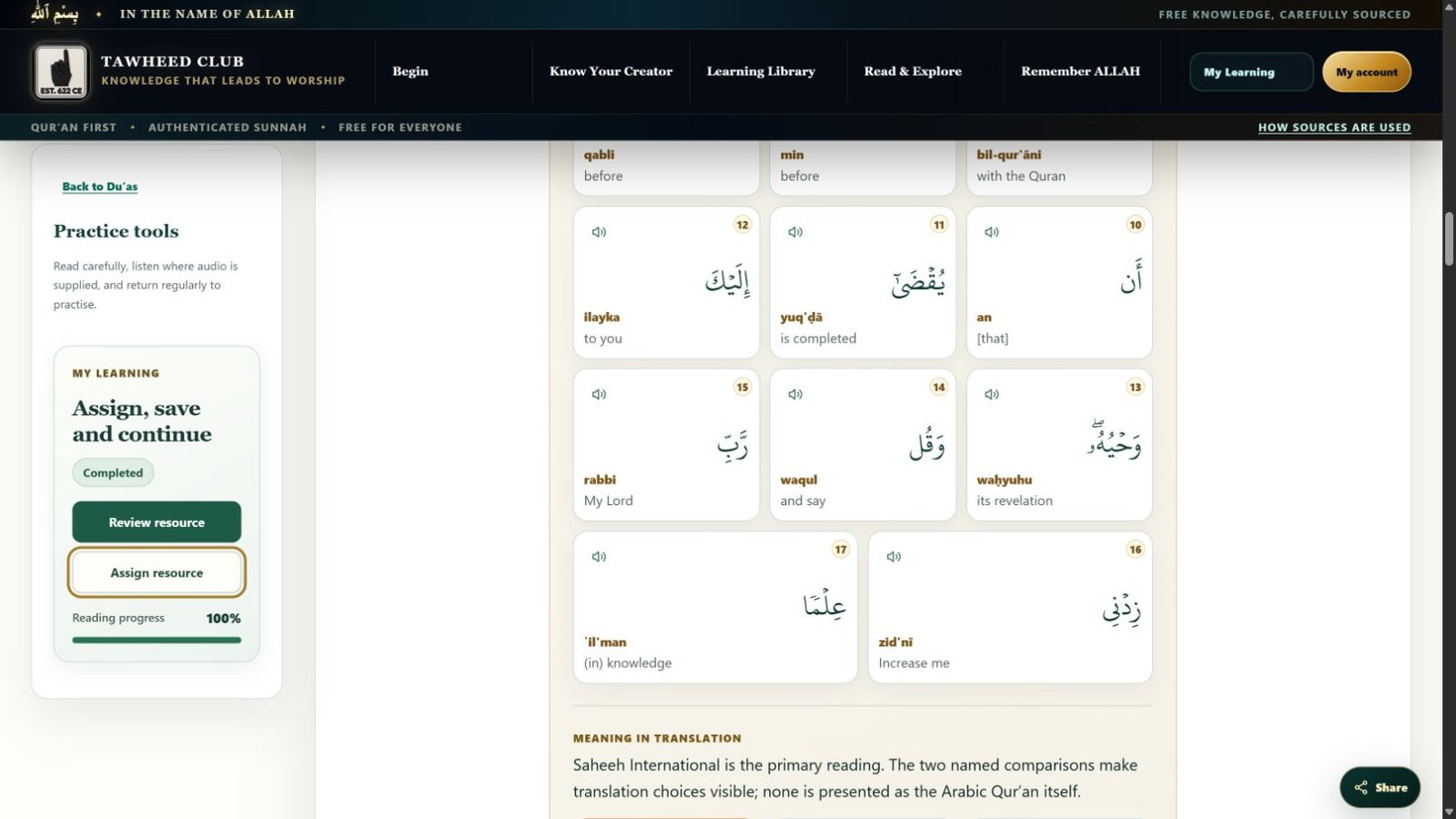
- Sign in with your learner account before starting if you want progress saved to that account.
- Open a reading resource and begin the content. Reading progress starts automatically; assigning it first is optional.
- Return through My Learning. Choose Resume, or Resume reading at …% on the resource, to use the saved reading position.
- Use Review or Review resource to revisit completed reading.
Assign or manage a resource
- On the resource, select Assign resource. If it is already deliberately assigned to you, the control may say Manage assignment.
- In Who is this resource for?, choose yourself or an available supervised student. If no student choices appear, the resource is being added to your own assignments.
- An adult selecting a student can set an Optional deadline. A deadline is not available for assigning to yourself.
- Select Confirm assignment to save it. Use Cancel or the close button to leave without confirming.
A deadline does not block access after the date. Creating an assignment for a student does not switch your current session into that student’s account.
Read the dashboard
Open My learning record. Work is grouped as Assigned to me, Started independently and Completed learning. Completed assignments move into the completed group. Cards may show a deadline, reading position, active time, last activity, scores and attempts according to the resource type.
Begin opens unstarted work, Resume returns to work in progress, and Review opens completed work. Adults viewing a student should check the learner name before interpreting the record.
What the labels mean
- Not saved / Not started
- No saved activity yet, or an assignment waiting to begin.
- In progress
- The resource has been started.
- Completed
- A reading resource reached completion.
- Failed — rework needed / Needs rework
- A knowledge check needs another attempt. Review the feedback and sources.
- Passed at 100%
- The knowledge check has a successful full-score attempt.
Progress normally retains the furthest recorded reading percentage. Rereading an earlier section does not make that percentage go backwards. See progress troubleshooting if the record appears wrong.
Understand adult reset controls
Tawheed Club editorial team · Guide checked 11 October 2026. Screenshots show examples; your resource, account options and browser controls may differ.